




This article shows how to implement dynamic rendering depending on the current zoom-level of the graphics.
Building an ActivityRenderer
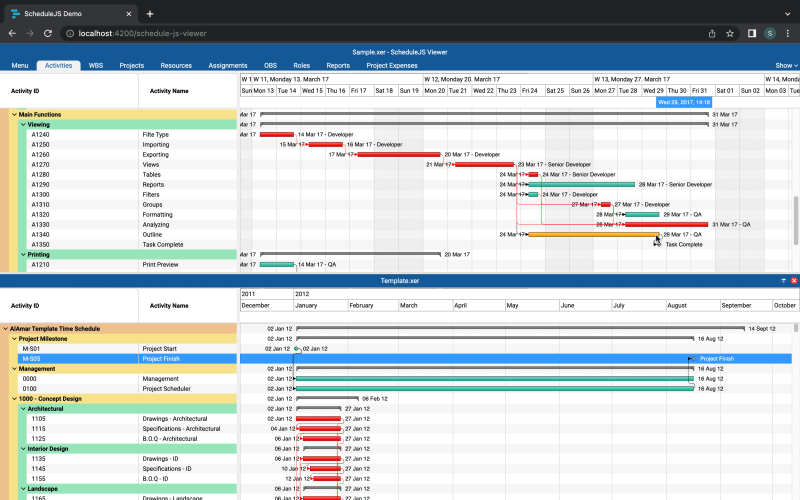
The Gantt activity renderer is the main renderer of the ScheduleJS Viewer. This article will discuss how it is built and what are the specificities of this activity renderer.
November 23rd, 2022 - 6 minutes read
How to build a custom renderer class
The first step to building a renderer class is to inherit attributes and methods by extending a higher-order framework class.
We want to represent tasks only through their start and end time dimensions. The ScheduleJS base renderer class for doing this is the ActivityBarRenderer class.
We need to provide the custom-type arguments to the ActivityBarRenderer class so the attributes and methods provided by our custom Row and Activity classes will be accessible using the base class API.
Let’s create the ScheduleJsViewerTaskActivityRenderer class to draw every ScheduleJsViewerTaskActivity in their respective ScheduleJsViewerTaskRow.
As-is, the renderer can already be registered to draw our activities using the default behavior of the ActivityBarRenderer. Now let’s dive into how to customize it.
The base architecture
In ScheduleJS, an ActivityRenderer is a class we register programmatically using the Graphics API to draw a specific Activity on its Row. To organize our ScheduleJsViewerTaskActivityRenderer, we will separate its code into three sections:
- The attributes will hold variables that let us change the behavior for a specific drawing procedure.
- The constructor will let us define a default state for the renderer.
- The drawing methods will hold all the instructions for drawing our activities on the canvas.
Attributes
Attributes are constants that will be reused throughout the renderer. As-is, these properties will only be edited directly in the renderer code. We can imagine a specific screen where the user could modify these settings directly in the UI.
Constructor
The constructor is tightly coupled to our renderer lifecycle method. In the ScheduleJS Viewer, we decided to instantiate the renderer whenever the user switches screens to define specificities and reuse our code in every tab that implements this renderer. It means the constructor function is run every time the user selects a screen featuring this renderer.
The setFill, setStroke, setFillHover, setStrokeHover, setLineWidth, and setBarHeight are inherited and used to alter the default rendering characteristics of the ActivityBarRenderer class.
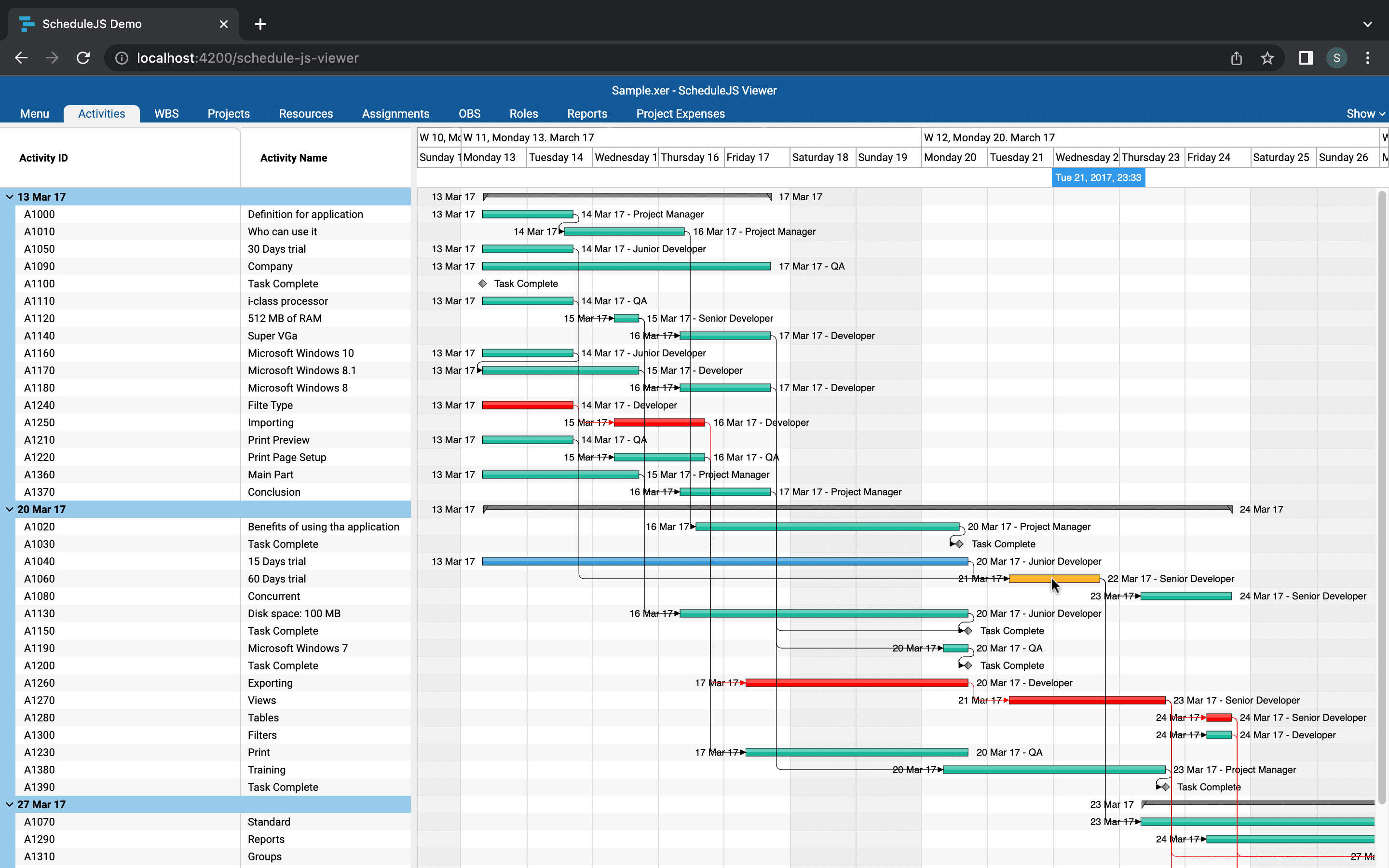
The default features of this renderer are the following:
- A custom color when hovering activities
- A black line stroke (for activity borders)
- A stroke line thickness of 0.5 pixels
- An activity bar height of 8 pixels
- A conditional fill color:
- Blue for children and brown for parents in the WBS tab
- Green for children and gray for parents in the other tabs
Drawing
The framework will automatically call the drawActivity method to render our activities on the canvas. All its parameters are dynamically filled, allowing you to react in real-time to the current state of your activities.
The drawing will occur this way:
- Get information on the current Activity and Row using the ActivityRef API
- Set colors dynamically using our
_setActivityColormethod - Draw activity text using our
_drawActivityTextmethod - Draw the activity itself based using two methods:
- The
_drawParentActivitymethod to draw parents - The
super.drawActivitydefault ActivityBarRenderer method to draw children
- The
Custom activity drawing methods
Let’s take a closer look at how to freely draw your activity by designing your own methods with the _drawParentActivity method.
Here we directly use the HTMLCanvas API to define our drawing strategy by setting up the CanvasRenderingContex2D. The only framework-related operation done in this method is creating some new ActivityBounds for the current parent Activity.
The framework creates a map using ActivityBounds under the hood to register all the activities on the screen. This map helps the developer by providing an element-like logic to build advanced user experiences based on accurate information while taking advantage of the performance of the HTMLCanvas API.
The draw elements methods like _drawParentActivityStartTriangle rely on the CanvasRenderingContext2D API to draw at the pixel level.
Final result
To register your brand-new renderer, use the graphics.setActivityRenderer method:
More ScheduleJS Viewer-related articles
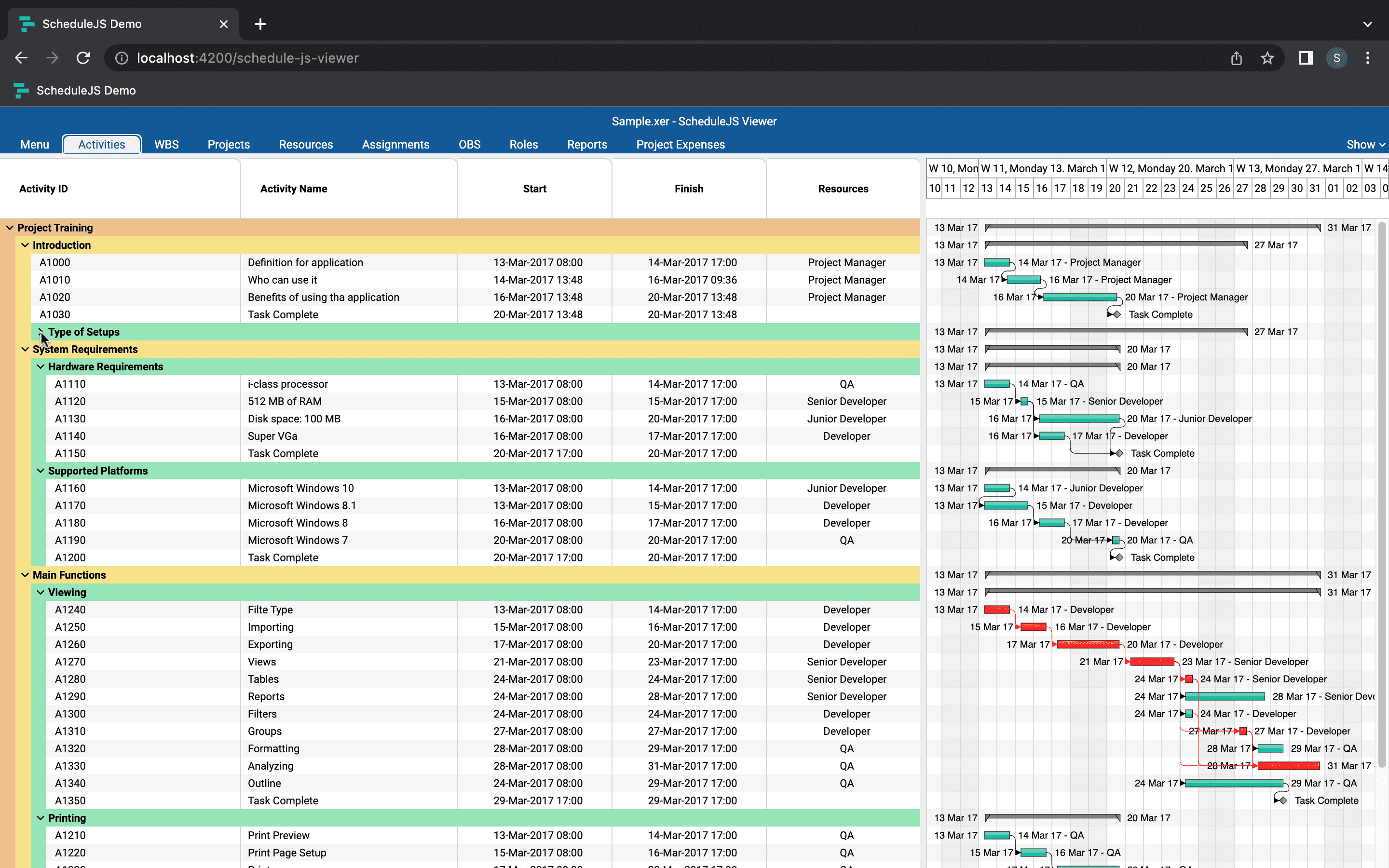
This article will show you how the parent-child tree Gantt architecture within the ScheduleJS Viewer was built.
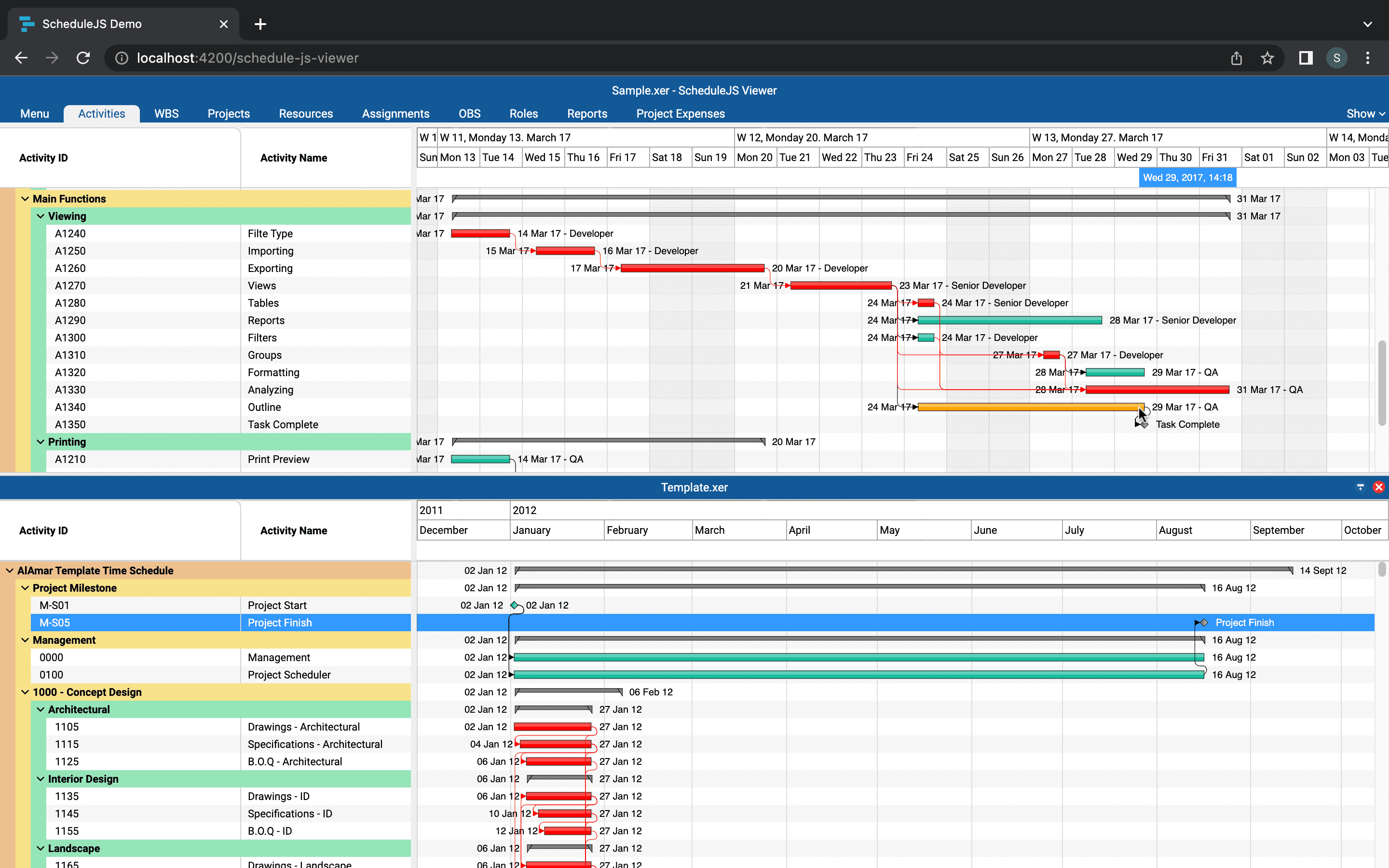
This article will showcase how the main activity renderer of the ScheduleJS Viewer was built with code examples.
This article presents the main features included in the ScheduleJS Viewer. A brand-new web-based project viewer.

I particularly liked the way you explained how to build the renderer. The explanations on creating classes and managing drawing methods are very clear.”